All guides

Create AI environments for Unity and Unreal Engine.

Choose a skybox, generated 3D world, or model asset by the file your Unity or Unreal project can actually import and optimize.

Create AI environments for Unity and Unreal Engine. guide cover

Takeaways

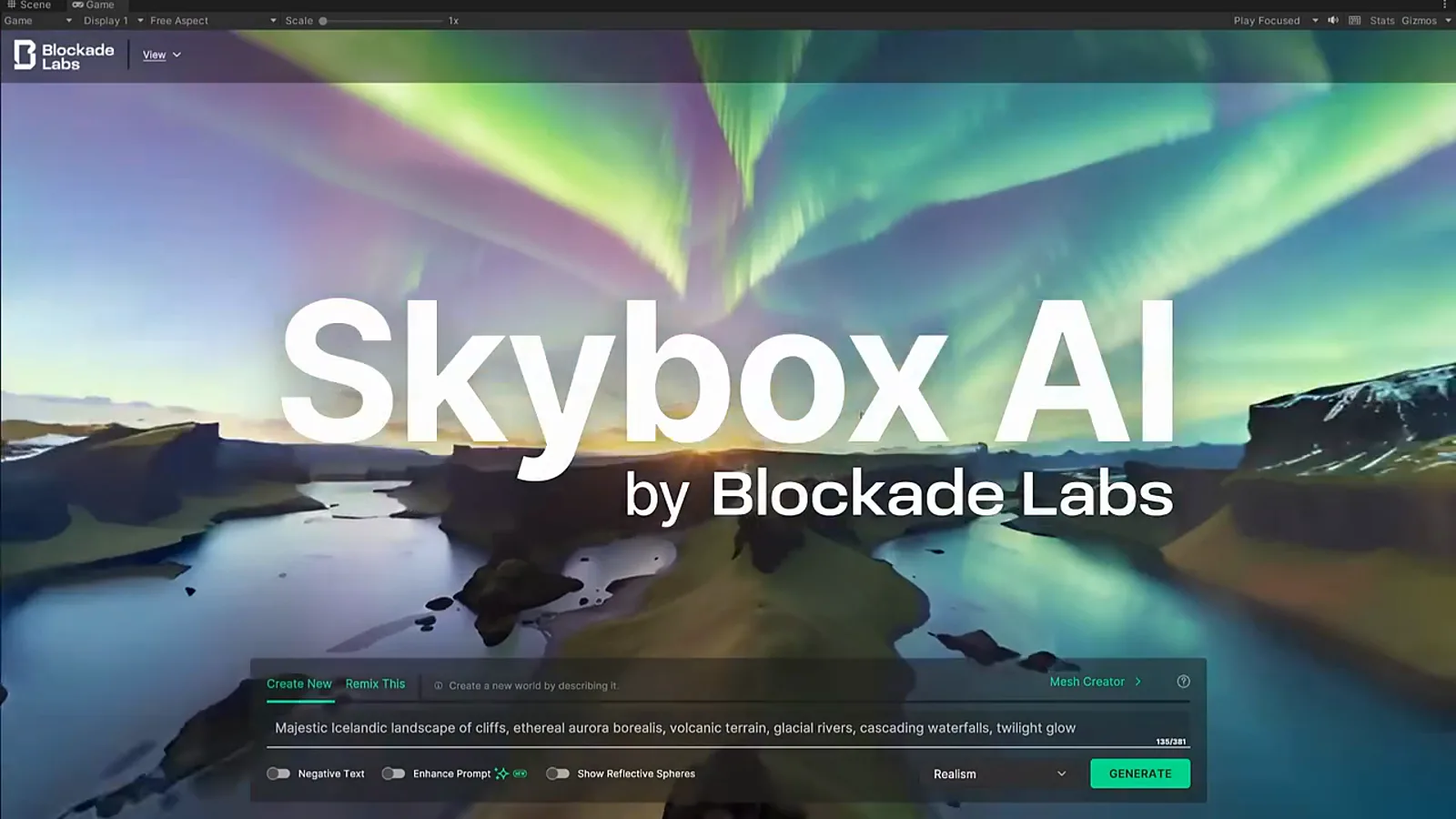
  • Use a 360° skybox when the generated asset is the surrounding background, not navigable geometry.
  • Use a generated 3D world when the deliverable is an explorable scene, then inspect scale, geometry, collision, and export support.
  • Treat engine-ready as a review checklist, not an automatic promise from a visually strong demo.

Output formats

Choose the file your next tool can use.

File extensions do not guarantee identical contents. Check whether the result is a mesh, a Gaussian-splat scene, or a provider-specific package before importing it.
SPZ

SPZ

SPZ stores compressed 3D Gaussian splats rather than a conventional polygon mesh. It retains splat attributes such as position, scale, rotation, opacity, color, and spherical harmonics while reducing file size. Use an SPZ-compatible splat viewer and confirm coordinate-system handling before moving the scene between tools.

Best for
Compact Gaussian-splat worlds, web viewers, and real-time scene delivery.
Open with
Open it in an SPZ-compatible Gaussian-splat viewer or runtime. Niantic's browser-based SPZ Tools can inspect metadata and convert between SPZ and compatible PLY splat files without installing an application.
How to use
Keep SPZ as the compact delivery copy when the target viewer supports it. Import it through that viewer's SPZ loader, or convert a working copy to PLY when an editor needs a less compressed interchange format.
Check first
Confirm the SPZ version, point count, spherical-harmonic detail, coordinate system, orientation, scale, and visual quality after decompression. Do not treat it as a polygon mesh.
SOG

SOG

SOG means Spatially Ordered Gaussians. It is a lossy, compact container made from a metadata file and compressed image data that stores the properties of a Gaussian-splat scene. Treat the download as a file set and keep its files together when hosting or importing it.

Best for
PlayCanvas, browser delivery, and streaming Gaussian-splat scenes.
Open with
Preview it with the PlayCanvas Viewer or another runtime that explicitly supports SOG. SOG is a dataset made from meta.json plus compressed image files, not a single conventional 3D model.
How to use
Extract the complete download when needed, preserve every companion filename and relative path, then load meta.json through the compatible viewer or host the entire file set together for streaming.
Check first
Check that no metadata or image file is missing, that the server returns the correct files, and that color, opacity, orientation, scale, and compression quality match the source scene.
PLY

PLY

PLY is an openly documented format for vertices and optional polygon faces with custom per-element properties. In a world-generation workflow, a PLY may contain Gaussian-splat point attributes rather than a ready-made triangle mesh. Inspect the header and use a compatible splat tool before assuming it will behave like an OBJ or GLB.

Best for
Splat editing, research tools, point-cloud exchange, and conversion workflows.
Open with
Open a Gaussian-splat PLY in a splat-aware editor or viewer such as SuperSplat. A general PLY importer may read the points but ignore the custom opacity, scale, rotation, and spherical-harmonic properties.
How to use
Use PLY as an editable or conversion-oriented copy of the splat scene. Import it into the intended splat tool, make or validate changes there, then export the delivery format required by the final viewer.
Check first
Inspect the PLY header before choosing a tool. Confirm whether it contains polygon faces, a basic point cloud, or Gaussian-splat attributes, then check point count, axes, scale, color, and opacity.
DRC

DRC

DRC is a raw file compressed with Google Draco, a library for meshes and point clouds. It is optimized for storage and transmission, but it is not a complete scene package by itself: materials, textures, cameras, and other world data may be delivered separately or omitted.

Best for
Compact geometry transfer and pipelines that already include a Draco decoder.
Open with
Decode it with Google's Draco decoder or open it through a 3D pipeline that explicitly supports raw DRC geometry. Most desktop viewers cannot use a standalone DRC file by double-clicking it.
How to use
Decode or transcode the geometry into the format expected by the next tool, then reconnect any separately delivered materials, textures, cameras, or scene data. Keep the original DRC as the compressed source copy.
Check first
Verify whether the decoded result is a mesh or point cloud and confirm positions, normals, texture coordinates, color attributes, scale, and orientation. DRC alone is not a complete rendered world.
WORLD

WORLD

WORLD labels the primary scene file returned by the Hunyuan World provider; it is not a universal interchange standard like glTF. Preserve the original filename and any companion files, then use the provider's documented workflow or convert the result before opening it in a general 3D tool.

Best for
Keeping the provider-native Hunyuan World result for its supported workflow.
Open with
Use the Hunyuan World workflow or runtime documented for the generated package. General-purpose 3D applications should not be expected to recognize a provider-native WORLD file directly.
How to use
Preserve the original filename, folder structure, and every companion asset. Start from the provider's loader or conversion path, and create a separate GLB, DRC, or other working copy only when that workflow supports it.
Check first
Confirm the provider version, required runtime, companion files, coordinate system, scene scale, licensing, and conversion limitations before depending on the package outside its native workflow.
GLB

GLB

A world GLB uses the same binary glTF container as an object GLB, but the contents can be very different: it may be an environment mesh, depth mesh, or a provider-specific scene export. It does not automatically preserve the view-dependent appearance or navigational behavior of a Gaussian-splat world.

Best for
Mesh-based web previews, common 3D applications, and engine import.
Open with
Preview it in World Models Watch or a glTF viewer, edit it with Blender's glTF 2.0 importer, or import it into a compatible Unity, Unreal Engine, Godot, or web 3D workflow.
How to use
Treat it as a mesh-based environment export. Import one copy into the destination, then configure materials, lighting, collision, navigation, cameras, and performance settings required by that project.
Check first
Check scale, axes, normals, material extensions, texture color, holes, collision suitability, polygon cost, and whether the scene is only a depth shell. A world GLB is not automatically a navigable splat world.

Choose the deliverable

Backdrop, scene, and object are three different engine inputs.

A 360° panorama can establish the horizon, lighting direction, and atmosphere without supplying walkable geometry. A generated 3D world can provide a spatial scene, but still needs inspection before it becomes a level. A 3D model is a discrete object that follows a separate mesh-and-material workflow.

Choose the generator from the import target. This keeps a fast concept asset from being mistaken for a production-ready Unity scene or Unreal level.

Unity workflow

Match the export to the Unity renderer and scene plan.

For a skybox, confirm the panoramic layout, seam quality, resolution, color space, and whether the project expects a cubemap or equirectangular source. For a GLB or other 3D export, confirm the importer, material conversion, scale, origin, normals, and texture handling.

A generated world still needs decisions about collision, navigation, lighting, occlusion, batching, and whether the scene should remain one asset or be separated into editable pieces.

Unreal workflow

Treat visual fidelity and runtime readiness as separate checks.

A generated environment can be useful for concepting, background plates, and early blockouts before it is suitable for gameplay. Check coordinate orientation, units, materials, texture resolution, collision, LOD strategy, and how the export behaves under the target Unreal renderer.

Gaussian-splat and world-specific formats may require a dedicated viewer, plugin, conversion step, or web runtime. An available download is not proof of native Unreal support.

Review checklist

Check import path, editability, and runtime cost before calling it engine-ready.

Open the exported file outside the generator, verify scale and orientation, inspect geometry and materials, and test the intended camera distance. Then check collision, navigation, lighting, memory, draw calls, and licensing in the real project.

World Models Watch links to official product and export documentation for what is currently supported. Project-specific compatibility still needs a real Unity or Unreal import test.

FAQ

Does an AI environment export open directly in Unity or Unreal?

It depends on the output. A panorama, GLB, Gaussian splat, and proprietary world package follow different import paths. Check the format guide and official documentation before choosing a generator.

Is a generated environment game-ready?

Not automatically. Review topology or scene representation, scale, collision, materials, optimization, editability, and license terms inside the target engine.

Decision tables

Related World Model Comparisons

Sources

Discussion

Reader discussion

Add source-backed corrections, questions, or notes for this page.

Loading comments
Loading discussion...

Loading comments...